
Writing and publishing
The editor, publishing and scheduling, autosave, revisions and previews.
Posts, pages and items of your own types are all written in the same editor.
Create an item
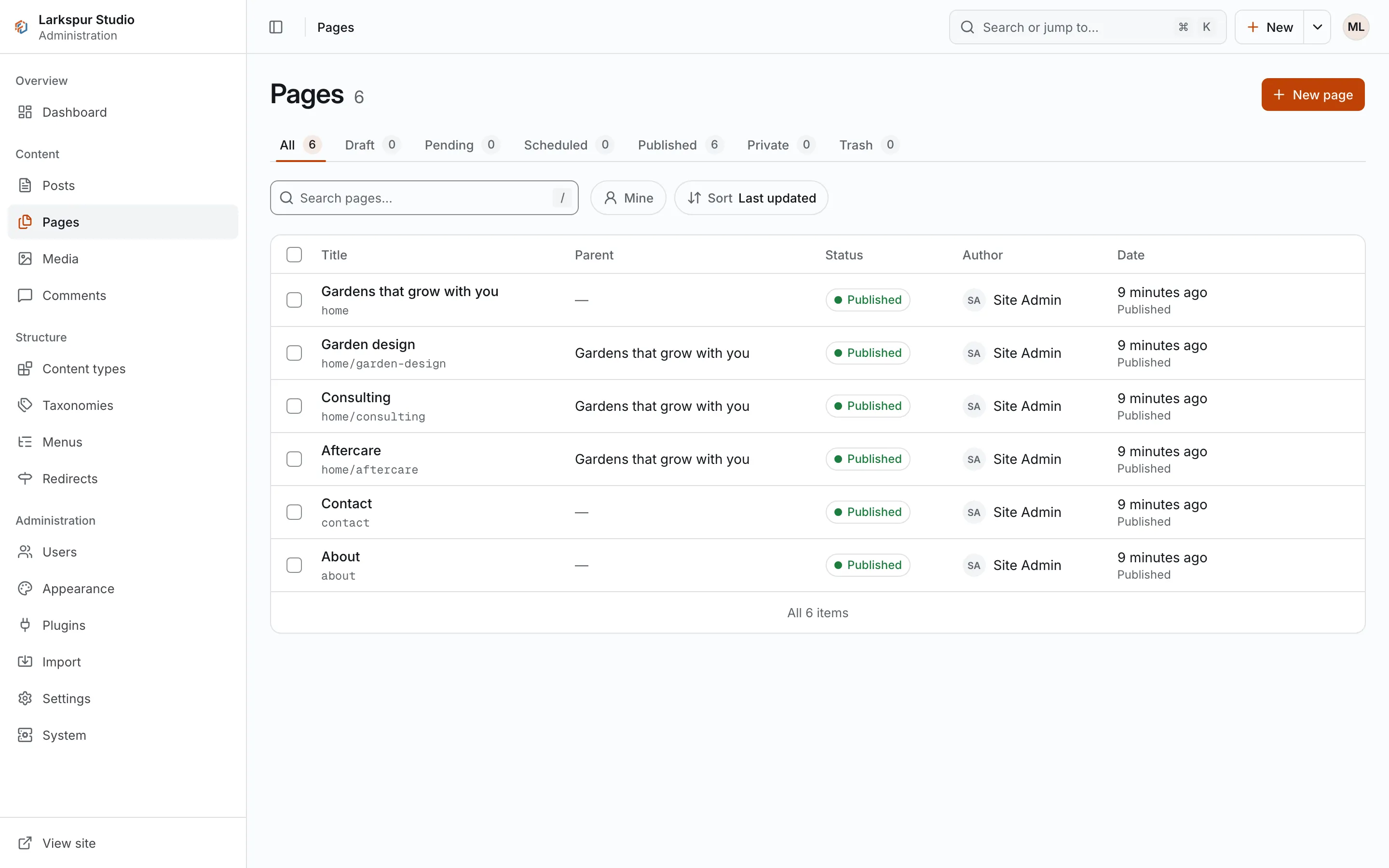
Open Posts (or Pages, or your type) in the sidebar and choose New post (or New page, New entry), or use the New menu in the top bar. The list screens have a tab per status, a search, a Mine filter for your own items and a filter per taxonomy.
The editor
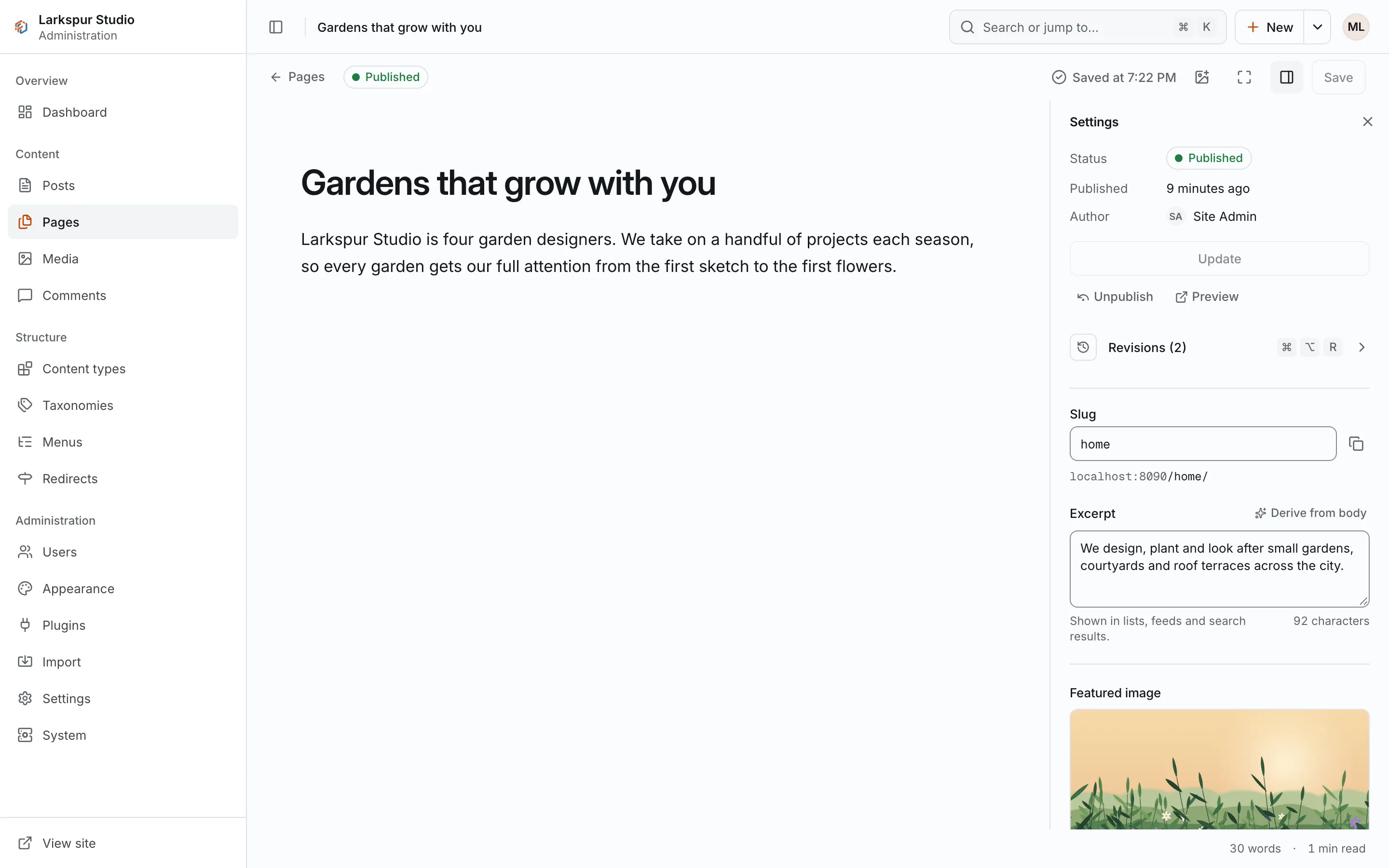
The editor shows the title and the body. In the body, type / to insert a block:
headings (levels 2 to 4), bulleted and numbered lists, quotes, code blocks, tables and dividers;
Image, from the media library;
Embed, a YouTube or Vimeo video;
HTML block, raw markup that the site sanitises when it renders it.
Select text for the formatting bar: bold, italic, strikethrough, inline code, link, headings and quote.
The side panel (⌘. / Ctrl+.) holds everything else: status and publish time, author, slug and address, excerpt, categories and tags, parent and order for pages, the featured image, custom fields and the SEO fields.
Shortcut | Action |
|---|---|
| save |
| show or hide the side panel |
| open the publish dialog |
| open the revisions |
| focus mode |
Save, autosave and conflicts
Save writes the item. In between, the editor autosaves every 10 seconds while you type, into a private slot of yours; the item itself does not change until you save. When you open an item whose slot holds unsaved work, the editor offers it back with a banner, and you can restore or discard it.
If someone else saved the item while you were editing, your save is refused and a dialog shows both versions side by side. You can keep yours, take theirs (yours stays in your slot) or copy your text.
Publish or schedule
The publish dialog offers Now or Later. Later takes a date and a time on your browser's clock, shows its time zone, and refuses a time in the past. A scheduled item goes live by itself at that time; until then the panel offers Unschedule.
What you may do depends on your role:
authors, editors and admins can publish their own items (editors and admins anyone's);
contributors Submit for review, which sets the item to pending. An editor or admin publishes it.
Unpublish takes a published item back to draft.
Preview
Preview in the side panel opens the item as the site will show it, in a new tab, at /_preview/<id>. It shows the saved item, so save first to see your latest changes. Previews work only for a signed-in user who may read the item, are never cached, and tell search engines not to index them.
Revisions
Every save keeps a revision; the newest 50 of each item are kept. Open them with Revisions in the side panel or ⌘⌥R. Each revision is shown against the current item as a word diff, and Restore brings it back (with an undo).
Trash
Move to trash in the side panel, or in a list's row menu, moves an item to the trash, with an undo. From the list's Trash tab you can restore it (as a draft) or delete it permanently. Contributors cannot restore or delete items.
Preview while you write
Preview in the editor bar (Ctrl/⌘ + Alt + P) shows the item as the theme renders it, next to the text, and follows your autosaved working copy as you type. Releases, shared preview links and approval workflows are in Releases and reviews.
Updated