
Media
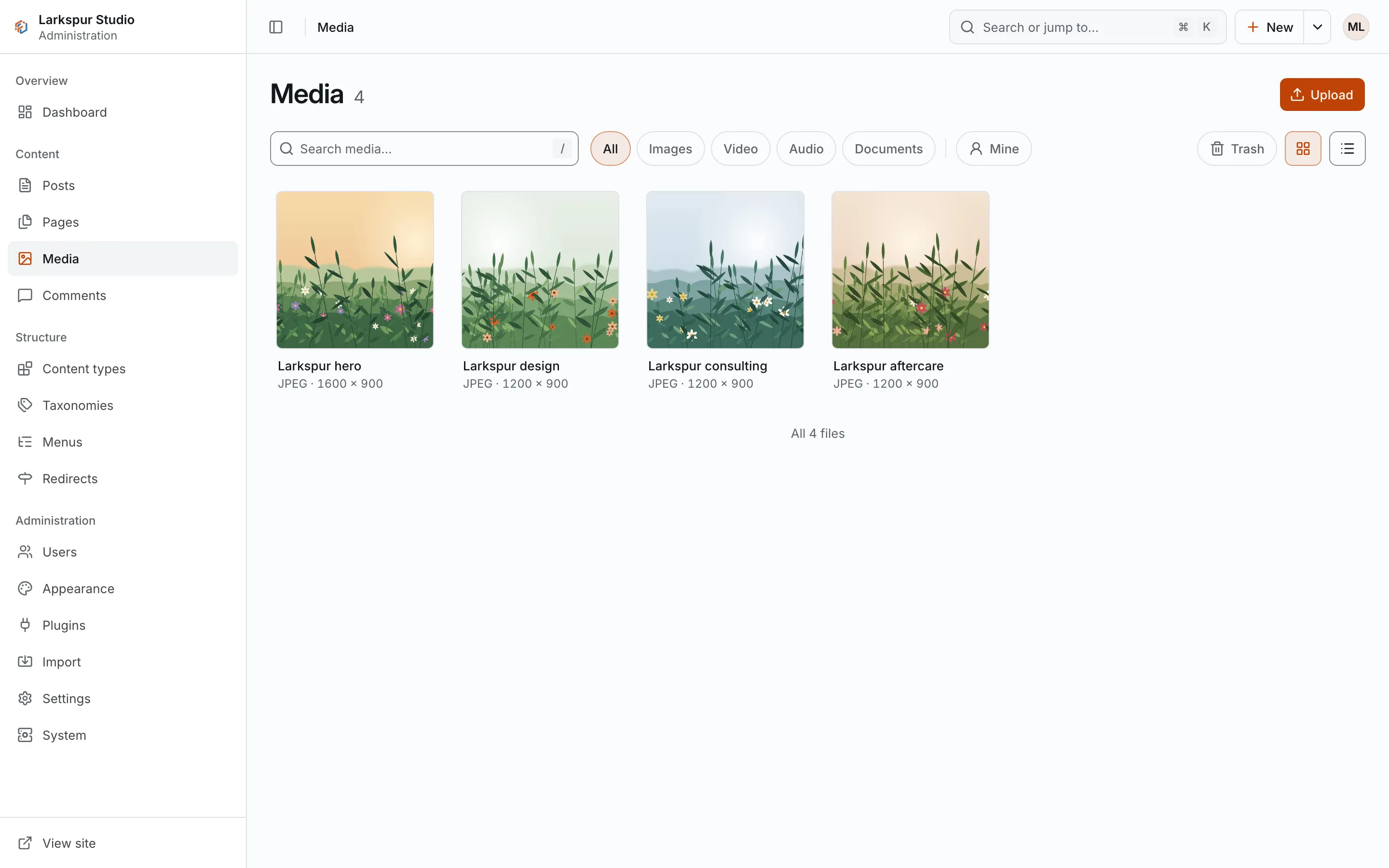
Upload files, set alt text, use featured and inline images, and understand image sizes.
Uploaded files are media items. They are listed under Media in the admin.
Upload files
On the Media screen, choose Upload or drop files anywhere on the page. Up to three uploads run at once; each row in the upload tray shows its progress, and a failed one says why, with Retry where retrying can help. You can also upload from the media picker while you edit an item, or drop an image straight into the editor's body.
Uploading needs the author role or higher. The largest file is 256 MiB by default; the max_upload setting in the [media] section of ferrite.toml changes it (up to 1 GiB).
What you can upload
The type is decided from the file's content, not from its name.
File | Served |
|---|---|
JPEG, PNG, GIF, WebP images | in the page; resized copies are made |
SVG images | in the page, after the SVG is sanitised |
MP3, Ogg and WAV audio; MP4 and WebM video; PDF | in the page |
| as a download only |
| as a download only |
Anything else, such as HTML, XML or programs, is refused. Office files, archives and text files are always served as downloads, so a browser never opens them inside your site.
Title and alt text
Select a file to open its details. Title and Alt text save when you leave the field. Alt text describes the image for people who cannot see it; leave it empty only for a decorative image. The details also show the file's address, its facts and its sizes.
Featured and inline images
Featured image: in the editor's side panel, the Featured image section picks an image for the item. The
blogtheme shows it on listing cards and at the top of the post, and the page head names it as the item'sog:image.Inline images: insert one in the body with
/and Image, or drop an image file on the body. Each image has its own alt text in the editor.
Image sizes
After an image is uploaded, the server makes resized copies in the background. Every site makes three sizes:
Size | Width × height |
|---|---|
| 150 × 150, cropped |
| 768 wide |
| 1600 wide |
The active theme can ask for more (the blog theme adds card and hero). No copy is made wider than the original. Pages use the copies in a srcset, so browsers load a size that fits; a srcset only offers copies of the same shape, so a cropped hero never turns into the uncropped picture. Until a copy exists, the original is used.
After you switch to a theme with other sizes, make the missing copies for images you already have (with SQLite, stop serve first):
ferrite media regenerate --data ./mysite
Photo metadata
Resized copies never carry EXIF or XMP data (such as GPS position). The original is kept as uploaded unless you set strip_metadata = true in the [media] section, which removes that data from uploaded JPEG, PNG and WebP files.
Trash
Media you move to the trash can be restored, or deleted permanently, from the Trash view. A daily clean-up removes stored files that nothing refers to any more, once they have been unreferenced for a grace period (7 days by default, gc_grace_days in [media]).
Where files are stored
A solo site keeps files in <data>/media/. A cluster keeps them in an S3-compatible bucket.
Updated