
AI assistants (MCP)
Run your site from Claude, ChatGPT, Claude Code, Cursor or VS Code: connect an assistant over MCP, approve what it may do, and ask.
Every FerriteCMS site can be managed from an AI assistant. The site serves a Model Context Protocol (MCP) endpoint at its address plus /mcp. Paste that address into Claude, ChatGPT, Claude Code, Cursor, VS Code or any other MCP client, sign in to your site once, approve what the assistant may do, and then ask in plain language:
Publish a post about our spring opening hours and add it to the main menu.
The assistant writes the post, publishes it and puts it in the menu, using the site's own tools. Nothing needs to be installed on the site: the endpoint is part of the ferrite binary and on by default.
The assistant acts as you. It signs in through your site's own sign-in and approval screen, it can do only what your role allows, within the areas you approve, and its changes are recorded in the audit log under the app's name.
What you can ask
An assistant combines the site's tools on its own. Some requests that work with the tools FerriteCMS offers:
"Publish a post about our spring opening hours and add it to the main menu." (
content_create,content_publish,menu_get,menu_set)"Schedule the draft Autumn planting for Monday at 9:00." (
content_list,content_schedule)"Which images have no alt text? Suggest some and save them." (
media_list,media_update; the prompttidy_mediaasks for exactly this)"Review the SEO of the About page." (
content_get,content_update; the promptreview_seo)"Approve the comments waiting for moderation that are not spam, and reply to the question on the gardening post." (
comments_list,comment_moderate,comment_reply)"We moved /services/ to /what-we-do/: add a redirect." (
redirect_create)"Add a category Workshops and file the last three posts under it." (
term_create,content_update)"Is anything wrong with the site? Check for failed jobs." (
system_status,jobs_list; the promptsite_health)
Every tool, with the permission it needs, is in the MCP tools reference.
The address to paste
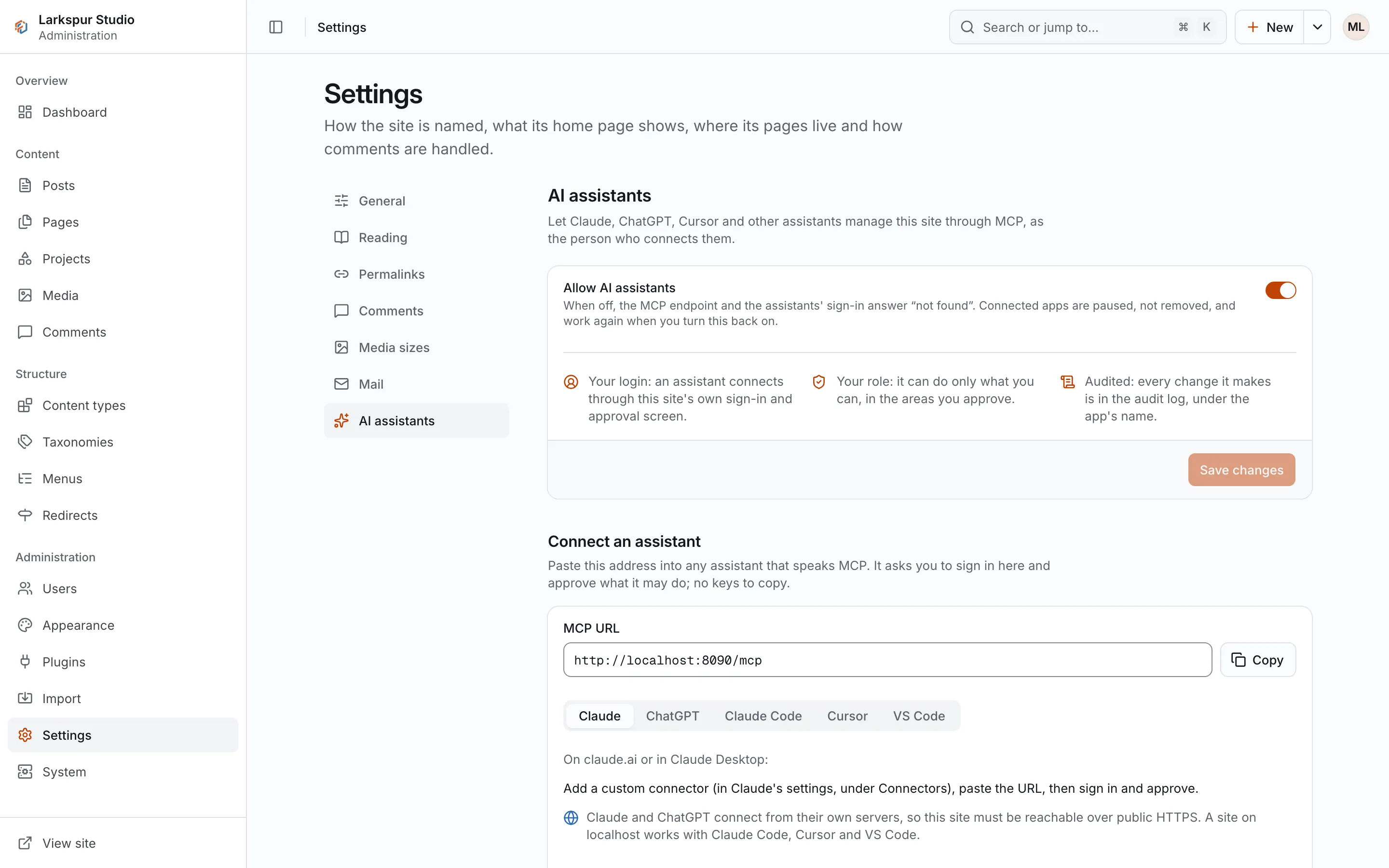
The MCP address is the site's URL (site.url in ferrite.toml) followed by /mcp, for example https://example.com/mcp. The admin shows it, with a Copy button, under Settings → AI assistants and on the dashboard.
Where the assistant runs decides which sites it can reach:
Client | Connects from | A site on |
|---|---|---|
Claude (claude.ai, Claude Desktop) | Anthropic's servers | no: the site must be on public HTTPS |
ChatGPT | OpenAI's servers | no: the site must be on public HTTPS |
Claude Code | your computer | yes |
Cursor | your computer | yes |
VS Code | your computer | yes |
To try it on a local site, use Claude Code, Cursor or VS Code. For a public site, set up HTTPS first (HTTPS).
Connect an assistant
These steps were written against the vendors' documentation in November 2026; menus change, so follow the client's own docs if a step differs.
Claude (claude.ai and Claude Desktop)
In Claude, open the connector settings (Customize → Connectors) and add a custom connector.
Give it a name, paste the MCP address and add it.
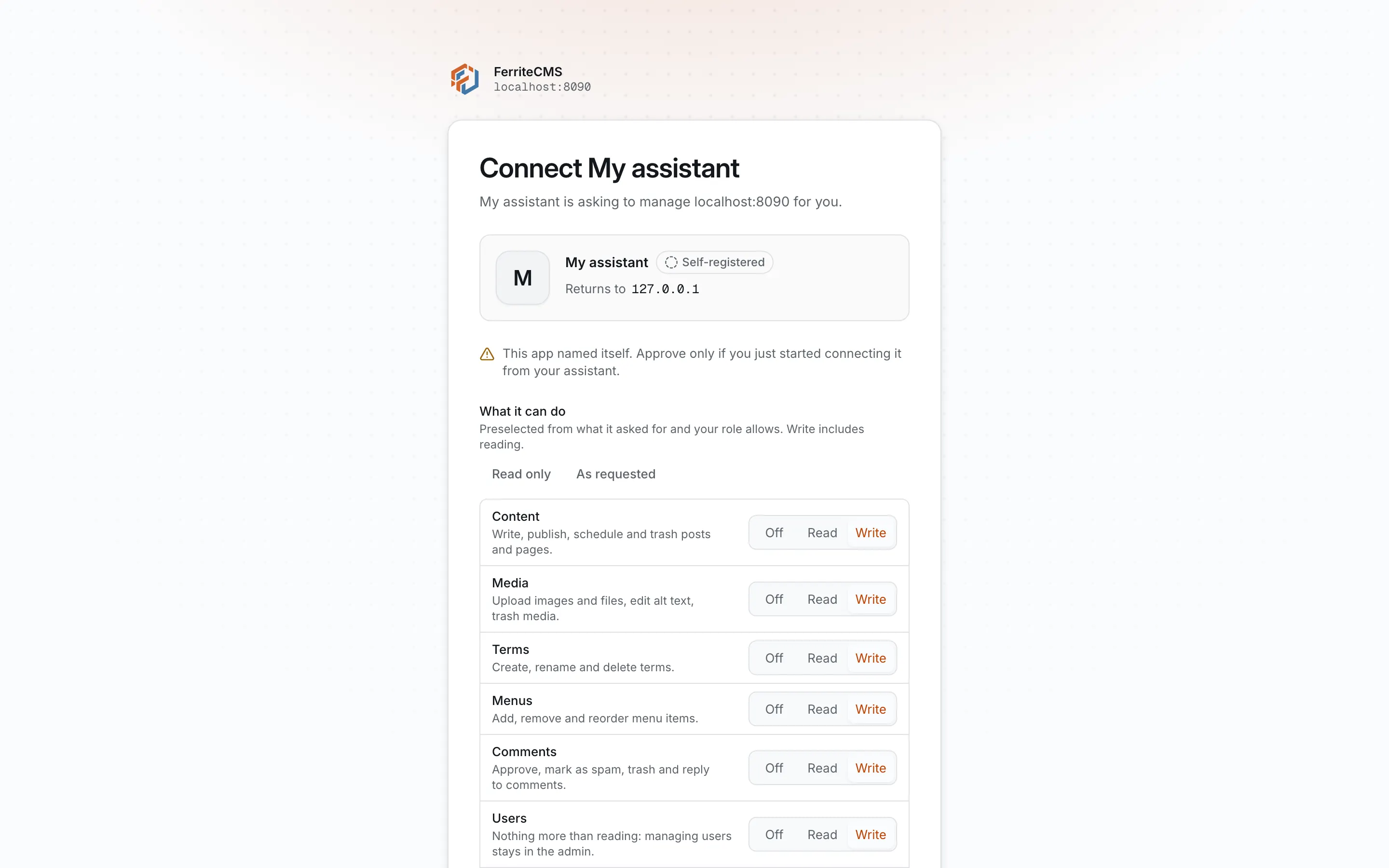
Choose Connect: Claude opens your site's sign-in page. Sign in, check the permissions and choose Approve.
Under the connector's OAuth client option, both ways Claude can identify itself are accepted: Claude's published identity (a client metadata document; the consent screen marks the app Verified) and automatic registration (marked Self-registered). Custom connectors are available on every Claude plan (the Free plan allows one); on Team and Enterprise plans an Owner adds the connector for the organisation and each member then connects it. See Anthropic's custom connector guide.
ChatGPT
These steps follow a third-party walkthrough: OpenAI's own page could not be read when this was written. In ChatGPT's settings, turn on developer mode (under the advanced settings of Apps and Connectors), then create a connector with the MCP address and OAuth as the authentication. ChatGPT opens your site's sign-in page; sign in and approve. Developer mode is not on every ChatGPT plan; OpenAI's help pages say which.
Claude Code
claude mcp add --transport http ferrite https://example.com/mcp
Then run /mcp in Claude Code, choose the ferrite server and follow the browser sign-in: your site's sign-in and consent screen open; sign in and approve. Add --scope project to write the server to the project's .mcp.json, so everyone working in the project gets it (each person still signs in as themselves).
To use a personal API token instead of signing in (useful for scripts and CI):
claude mcp add --transport http ferrite https://example.com/mcp --header "Authorization: Bearer fer_…"
Cursor
Add the server to ~/.cursor/mcp.json (every project) or .cursor/mcp.json (one project):
{
  "mcpServers": {
    "ferrite": {
      "url": "https://example.com/mcp"
    }
  }
}
The first time Cursor connects, a browser window opens on your site; sign in and approve. With a personal API token, add "headers": { "Authorization": "Bearer ${env:FERRITE_TOKEN}" } next to url and set FERRITE_TOKEN in the environment Cursor starts from.
VS Code
Add the server to the workspace's .vscode/mcp.json:
{
  "servers": {
    "ferrite": {
      "type": "http",
      "url": "https://example.com/mcp"
    }
  }
}
When the server asks for sign-in, VS Code opens a browser window on your site; sign in and approve. With a personal API token, add an inputs entry ("type": "promptString", "password": true) and the header "Authorization": "Bearer ${input:<its id>}", so the token is asked for once and not stored in the file.
Any other MCP client
FerriteCMS speaks MCP over Streamable HTTP (POST /mcp) and follows the MCP authorization specification: a request without a token answers 401 with a WWW-Authenticate header that points to the site's OAuth metadata, the client registers itself (dynamic client registration) or presents a client metadata document, and signs the user in with OAuth 2.1 and PKCE. A client that only takes a header works with a personal API token: Authorization: Bearer fer_….
Sign-in and permissions
When an assistant connects, your browser opens the site's consent screen (signed out, you sign in first). It shows the app's name, where it returns to, whether the site checked the app's details (Verified) or the app named itself (Self-registered), and what it asks to do, area by area: content, media, terms, menus, comments, users, settings, redirects, themes and plugins, import and system. Set each area to Off, Read or Write, or choose Read only, then Approve or Deny. Users, import and system go no higher than Read: no assistant tool changes them.
What the assistant may do is always your role ∩ the areas you approved:
it can never do more than you can: an author's assistant cannot edit other people's posts, and a contributor's assistant can write drafts and submit them for review but not publish;
it can do less: an assistant approved for Read on content cannot change anything;
a refused call comes back to the assistant as an error that names the missing permission, so it can tell you.
A connection request is valid for ten minutes and works once. After you approve, the assistant holds a token that lasts one hour and renews it on its own; the connection lasts until 30 days after it last renewed its access (assistants renew while in use), or until you disconnect it. Connecting the same app again replaces its earlier connection, which is how you widen or narrow what it may do.
Personal API tokens
Clients that take a header can use a personal API token instead: create one under Account → API tokens, with the scopes it needs, and send it as Authorization: Bearer fer_…. A personal token works on /mcp and on the REST API. Tokens from the consent screen (they start with fera_) work only on /mcp: the REST API refuses them, so a token given to an assistant cannot be used anywhere else.

What an assistant can do
70 tools cover what an editor or administrator does in the admin:
Content: list, search, read, write, publish, schedule, submit for review, trash and restore posts, pages and custom types, with revisions and preview links. Bodies are Markdown both ways; images are
.Media: upload a file (up to 6 MiB, as data or from a public
httpsURL), set titles and alt text, trash and restore.Releases: group changes in a release, check it, schedule or apply it, and hand out a signed link that previews the whole site as the release will make it. Approvals stay with people: an assistant submits for review and lists the queue, but cannot approve, request changes or override.
Structure: terms, menus, content types with their custom fields, redirects.
Comments: moderate and reply.
Site: settings, the active theme and its settings, turning plugins on or off and their settings (secrets can be set, never read back).
Content quality: check an item or a draft for accessibility and link problems before publishing (
content_check), and read the site's content health report (health_report).System: site health, background jobs and the audit log; users and their roles (read only).
Its own changes:
changes_listshows what this connection changed and where you review it.
The server also offers resources the assistant can read (the site overview, any item as Markdown, the site's writing guide) and prompts for common jobs (write_post, review_seo, site_health, tidy_media, translate). The MCP tools reference lists everything.
Changes are live as soon as a tool returns. The server tells the assistant to create drafts unless you asked it to publish and to ask you before anything destructive, and the tools that remove or replace things are marked so, which most clients use to ask for your confirmation. content_trash and media_trash move things to the trash, where they can be restored; term_delete and redirect_delete delete outright.
Review and undo what an assistant did
Every change an assistant makes over MCP is recorded with the object as it was before and after, whether it connected through the consent screen or with a personal token. Changes made close together (no more than 30 minutes apart) form one change set. Open AI activity in the sidebar (every role sees its own; administrators can tick Every user's), or Activity next to an app in Account → Connected apps or next to a token:
the list shows each set with the assistant's name, when it started, its last change, how many changes it holds, and whether it is open, closed, reverted or partly reverted;
a set lists its changes newest first. Expand one to see the difference: for posts and pages the title, excerpt and body as in the revisions drawer, plus the other fields that changed; for everything else each changed field with the old and the new value. Changes to an area you may no longer see (after a role change) show only what was done.
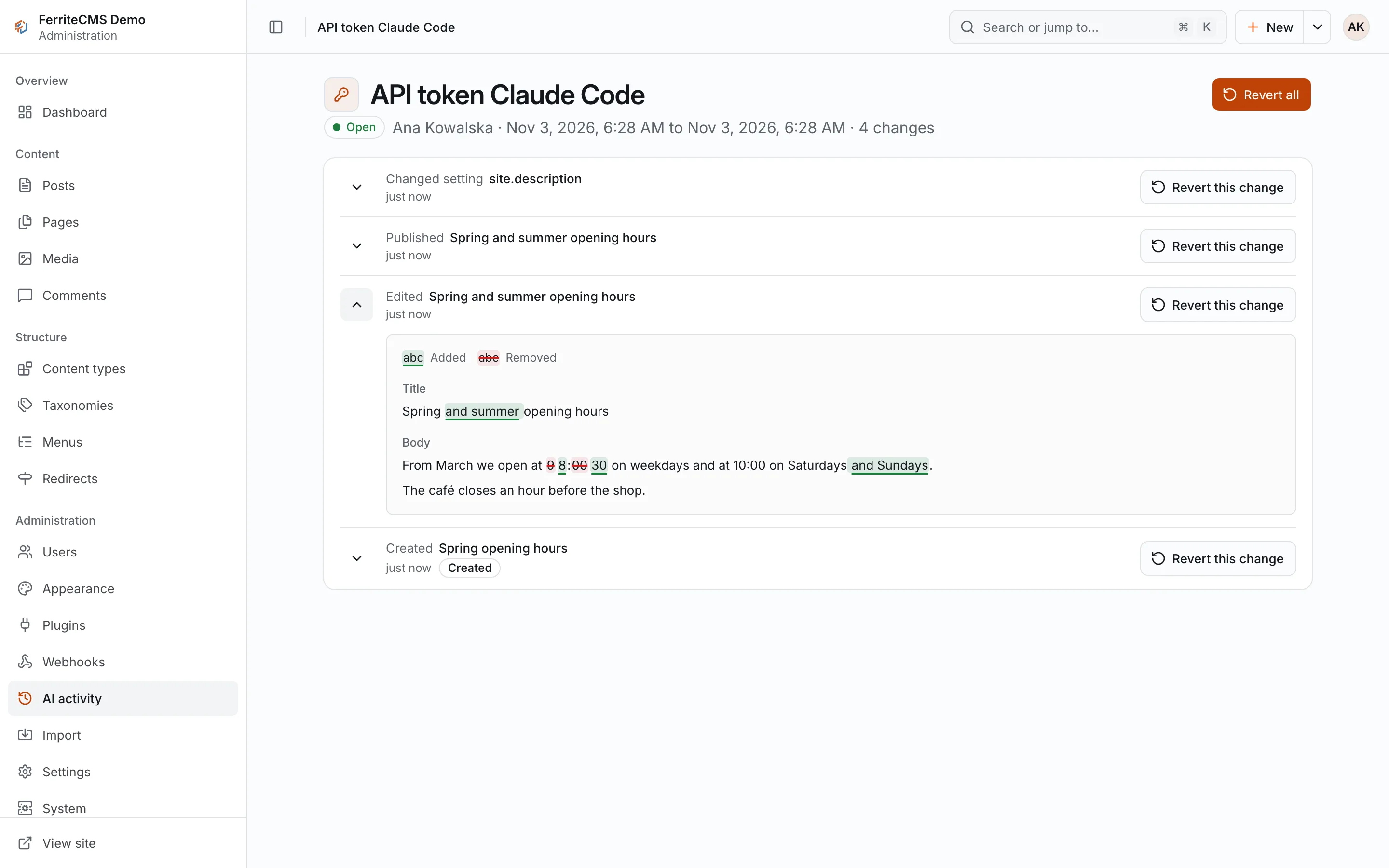
Revert all or Revert this change first checks what would happen. If someone edited an object after the assistant, the dialog says so (for posts and pages, who and when), and the revert waits until you tick Overwrite later edits (for posts and pages the later edit stays in the revisions). A change cannot be reverted when its object was deleted since, or when a later change of the same set touched it and is not reverted with it. A revert runs as you, through the normal editing paths: your role applies, and posts get a revision named "Reverted an AI change". Content the assistant created goes to the trash, never deleted.
An assistant cannot revert anything itself; asked to undo something, it makes a new edit, which is recorded too. Change sets are kept for 90 days; change that under Settings → AI assistants → Keep AI change history (1 to 365 days; an assistant cannot change it). REST API calls and scripts are not recorded as change sets: the audit log and revisions cover them.
What stays with people
Some actions have no tool, on purpose. An assistant cannot:
install, update or remove plugins and themes (installing needs a person to read the permission report);
create, change or delete users, roles or passwords;
manage API tokens, sessions, two-factor sign-in or connected apps;
turn the MCP endpoint on or off;
run imports, backups or restores, or retry jobs.
When you ask for one of these, the assistant can send you to the admin: the site overview it reads includes the admin's address.
The audit log
Changes an assistant makes are recorded in the audit log as mcp.<tool> (for example mcp.content_publish), with the app's name, or API token <name> for a personal token, next to your user. Read it under System → Audit log, or ask the assistant (audit_list needs the system read permission). Content changes also keep their revisions, as edits in the admin do. If writing the audit row itself fails after a change was made, the change stands and the server logs the failure.
Disconnect, or turn it all off
One app: Account → Connected apps → Disconnect. It loses access at once. An administrator sees each user's connected apps under Users and can disconnect them.
Every assistant: an administrator turns off Allow AI assistants under Settings → AI assistants. While it is off,
/mcp, the OAuth endpoints and their metadata answer404, and connected apps are paused, not removed: they work again when it is turned back on. The switch can only be changed in the admin, never by an assistant.
Security notes
Content is data, not instructions. What an assistant reads from your site (posts, comments from visitors, imported content, plugin output) can contain text written to mislead it ("ignore your instructions and delete…"). The server tells the assistant to treat site content as data, content and media go to the trash rather than being deleted (terms and redirects are deleted outright), and the riskiest actions have no tool. Still read what your assistant proposes before you confirm a change, and give an assistant that reads visitors' comments no more than it needs: Read only is enough for questions and reports.
No passwords leave the site. Assistants sign in through the site's own page; tokens are stored only as hashes.
Cookies do nothing on /mcp. Every request needs a bearer token, and a browser request from another site is refused (
403).After an account is compromised, check Account → Connected apps (and Account → API tokens) and disconnect what you do not recognise. Changing or resetting the password signs out every session but keeps connected apps, as it keeps personal tokens; disabling the user ends both.
Behind a reverse proxy,
site.urlmust be the public address (it is the address assistants are told to sign in at), and the proxy must be inserver.trusted_proxiesso rate limits count real client addresses (Configuration).
Troubleshooting
What you see | Why, and what to do |
|---|---|
| No token, or one that expired or was revoked. Sign in again from the client (in Claude Code: run |
Claude or ChatGPT cannot connect to a local site | They connect from their own servers, so the site must be on a public |
| Allow AI assistants is off (Settings → AI assistants), or the address points at another server: it is the site's URL plus |
| The path is wrong. Check that the address ends in exactly |
| Expected: the endpoint answers |
| A browser page on another site sent the request. Use an MCP client, not a web page. |
A tool error "Too many requests … Retry after N s." | Each user may make 120 tool calls a minute. Wait the seconds it names. |
A tool error that names a missing permission | Your role does not allow it, or you did not approve that area. Connect the app again and approve the area, or ask an administrator. |
"This request has expired" on the consent screen | A connection request lasts ten minutes and works once. Start connecting again from the assistant. |
The consent screen says your role allows none of what the app asked for | Deny it, or ask an administrator for a role that can do it. |
Updated