
Your first site
Create a data folder, add an admin account, start the server and sign in.
A site is one data folder. It holds the configuration, the database, the media files and the site key. These steps make a solo site (SQLite and local media) in the folder ./mysite.
Create the data folder
ferrite init --data ./mysite --url http://localhost:8080
--url is the public address of the site, used for the absolute links in the page head, the feed and the sitemap. Use the real address (https://example.com) for a public site. --title sets the site title (default My Site).
init creates:
Path | What it is |
|---|---|
| the configuration (mode 0600, as it can hold database and mail credentials) |
| the SQLite database, with every migration applied |
| the media store: uploaded files, their resized copies, and the files of installed themes and plugins |
| snapshots taken before each schema upgrade |
| the site key that seals stored secrets (mode 0600; never printed) |
A new data folder gets mode 0750. init refuses to overwrite an existing ferrite.toml or database.
Add an admin account
init creates no user. Create the first admin:
ferrite user create --data ./mysite --login me --email me@example.com
It prints a one-time password, once. You must change it at the first sign-in. To set the password yourself, pipe it in with --password-stdin (at least 12 characters, at most 1024 bytes):
printf '%s\n' "$PASSWORD" | ferrite user create --data ./mysite --login me --email me@example.com --password-stdin
--role picks admin (the default), editor, author or contributor.
Add sample content (optional)
ferrite seed demo --data ./mysite
This adds 12 posts, three pages, categories, tags, two menus and a sample image. It also creates a user admin that has no password, so nobody can sign in as it until you set one. You do not need it (sign in with the account you created above), but the command prints how, in case you want to: stop serve, then ferrite user reset-password --data ./mysite --login admin.
--profile business writes a small business site instead: a front page with three service pages, About and Contact pages, three news posts, two menus and four images. It is made for the business theme, so activate that too:
ferrite seed demo --data ./mysite --profile business
ferrite theme activate business --data ./mysite

Start the server
ferrite serve --data ./mysite
It prints Listening on http://127.0.0.1:8080. The site is at http://localhost:8080/. Stop it with Ctrl-C.
By default the server listens on 127.0.0.1:8080. To change that, set listen in the [server] section of ferrite.toml, or set the variable FERRITE_SERVER__LISTEN for one run. Every setting can be overridden this way: FERRITE_<SECTION>__<KEY>.
Sign in to the admin
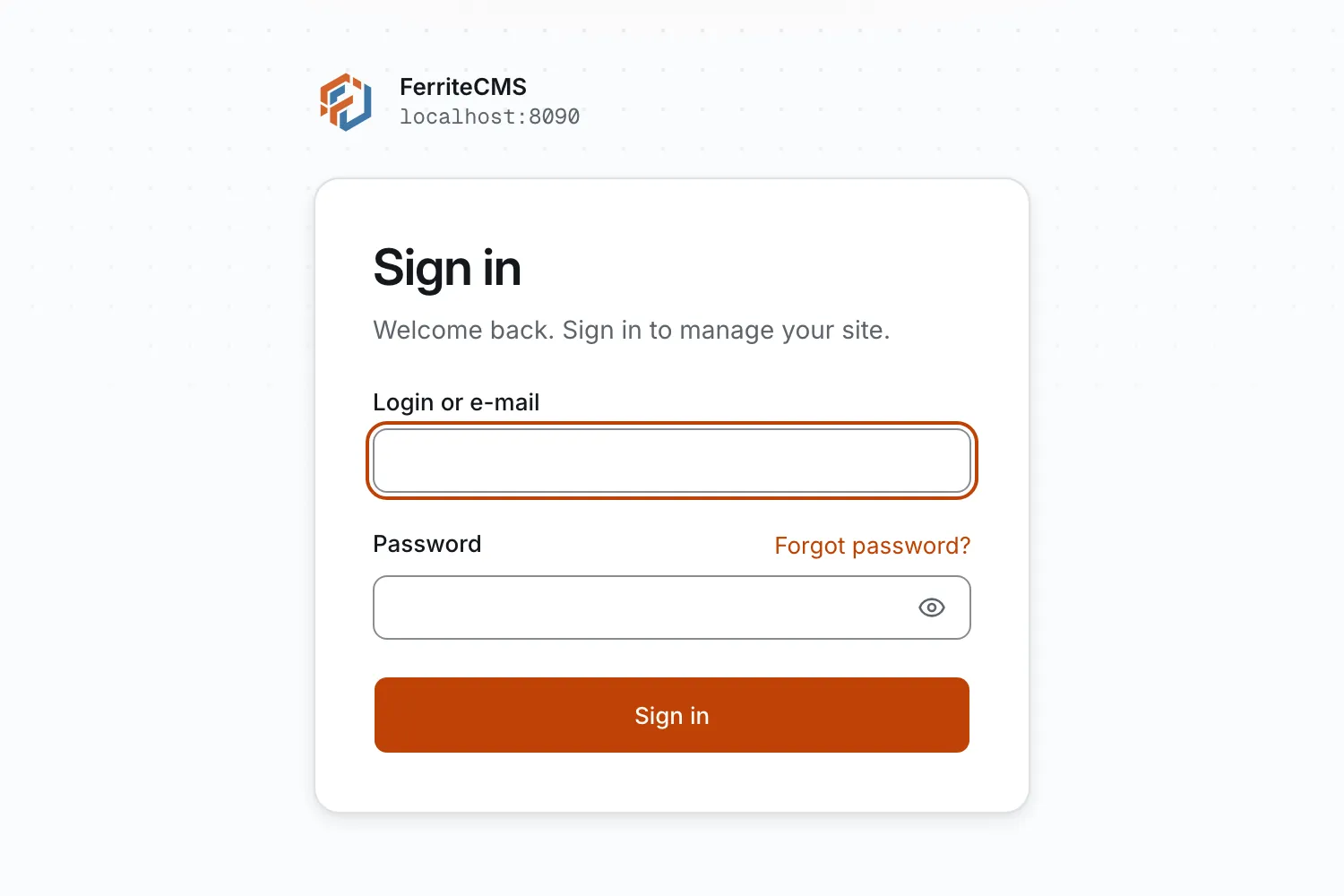
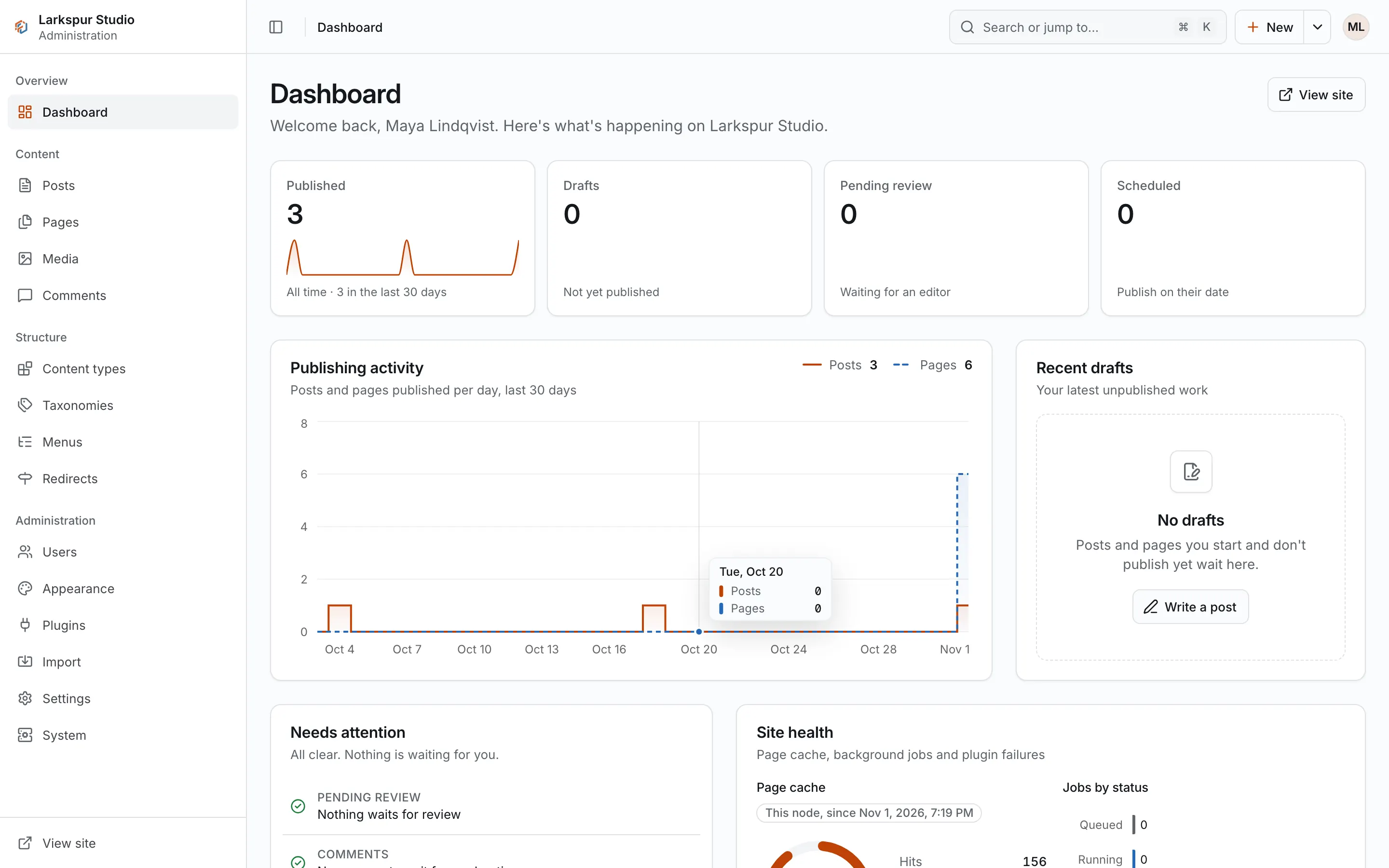
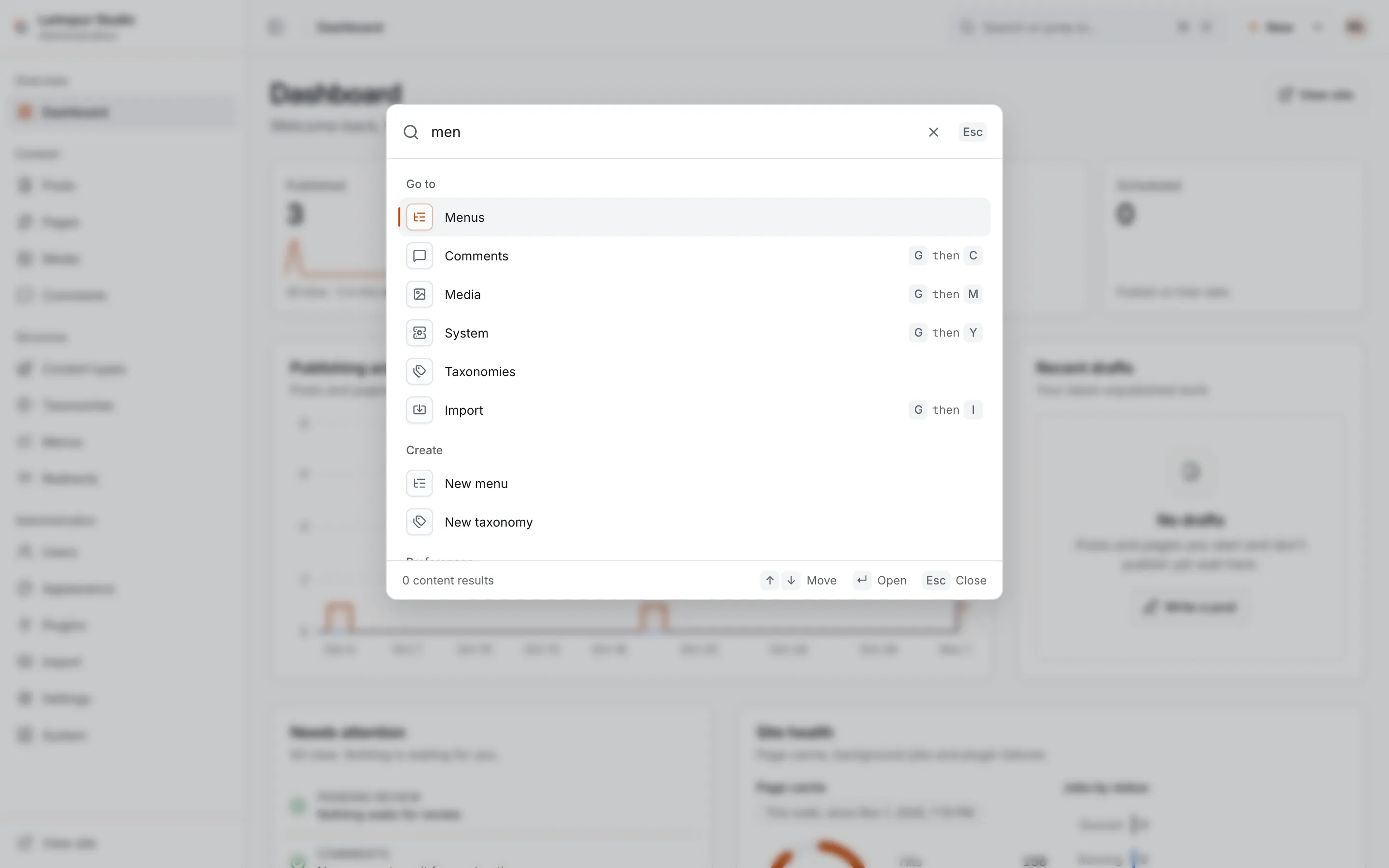
Open http://localhost:8080/admin/ and sign in with the login (or e-mail) and the one-time password. The admin asks for a new password first, then opens the dashboard. Press ⌘K (Ctrl+K on Linux and Windows) for the command palette: it searches content, jumps to a screen, creates something or changes a preference.
Connect an AI assistant
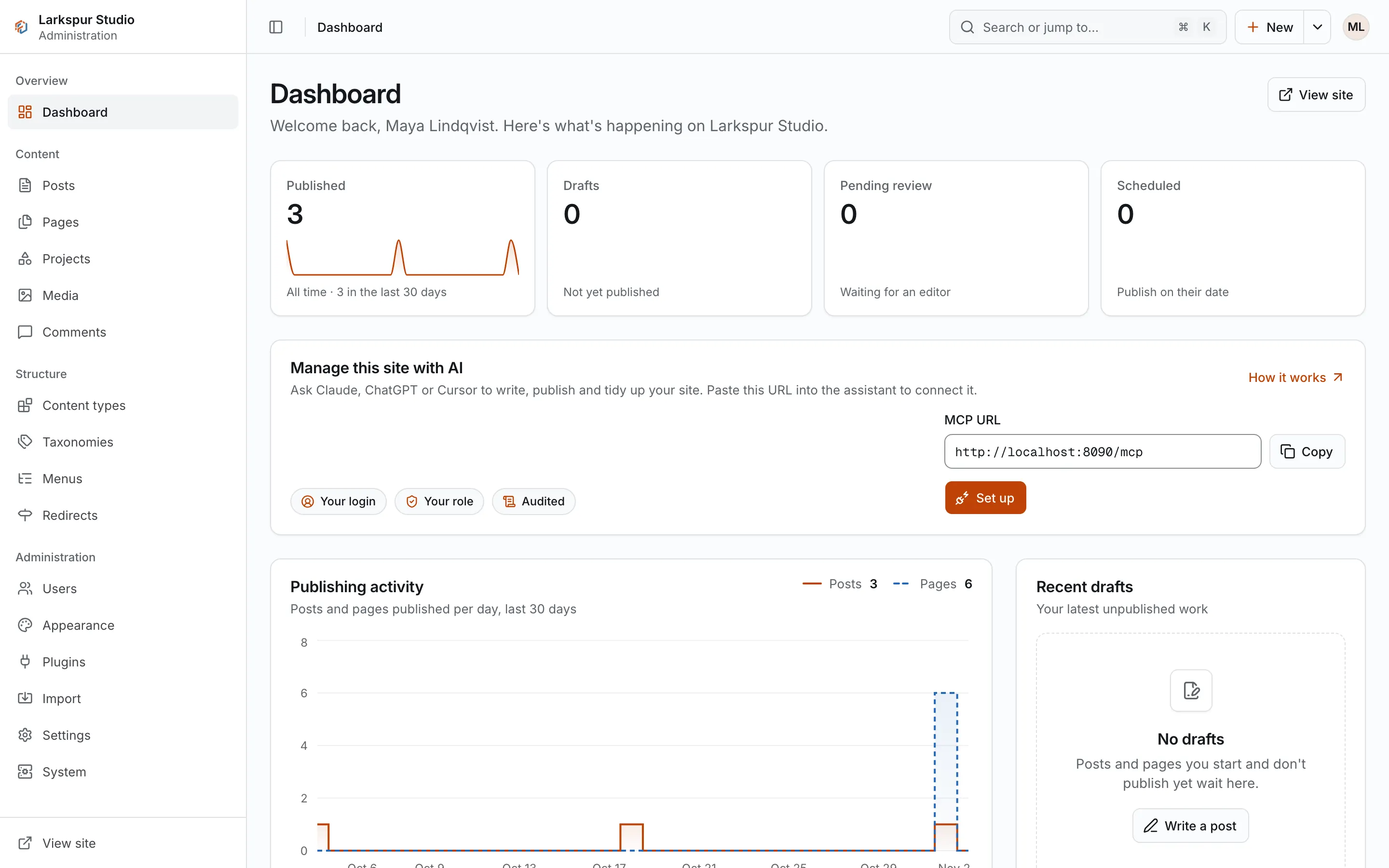
The site is ready to be run from an AI assistant. Its MCP address is the site's URL plus /mcp: here http://localhost:8080/mcp. The dashboard shows it, and Settings → AI assistants has the steps for each client. On a local site, use an assistant that runs on your computer, such as Claude Code:
claude mcp add --transport http ferrite http://localhost:8080/mcp
Then run /mcp in Claude Code, choose the ferrite server and follow the browser sign-in. Your browser opens the site's consent screen: approve, and ask Claude Code something like "List the drafts on my site" or "Write a short post about our opening hours, as a draft". Claude (claude.ai and Claude Desktop) and ChatGPT connect from their own servers, so they need the site on a public https address. See AI assistants (MCP).
Stop the server for maintenance commands
With SQLite, serve holds a lock on the data folder. While it runs, commands that open the database (user, seed, theme, plugin, import, migrate) fail with a message that the folder is in use. Stop the server, run the command, start it again. With Postgres there is no folder lock.
Check the configuration
ferrite config check --data ./mysite
It reads ferrite.toml and the FERRITE_* variables exactly as serve does, without opening the database, and prints one line such as ok: mode=solo database=sqlite media=local workers=… mail=off metrics=off tls=off backup=off webhooks=off, or the list of problems.
Next
Read the concepts, then start writing, in the admin or from your AI assistant.
Updated