
Themes
The three built-in themes, activating and customising a theme, and installing your own.
A theme sets how the public site looks. It is a folder of templates, CSS and assets with a theme.toml manifest. Themes cannot run code on the server: templates get data from core and a fixed set of helpers, and anything that needs logic belongs in a plugin.
The built-in themes
Three themes are compiled into the binary. Each uses plain CSS with no build step and follows the visitor's light or dark setting. They are licensed like FerriteCMS (AGPL-3.0-only), with a permission to copy them into a theme of your own under any license (LICENSE-EXCEPTION.md in the repository).
Theme | For | Settings |
|---|---|---|
| a blog: posts, pages, categories, tags and comments | accent colour, show post authors, show excerpts in listings |
| documentation: a page-tree sidebar, breadcrumbs, a table of contents and previous/next links | accent colour, the content type shown in the sidebar, show the table of contents, show the "updated" date |
| a small business: a front page with a hero, feature cards and news, and a contact page | accent colour, call-to-action text and link, show the latest news, show the contact form |
All three have two menu locations, primary and footer.
docs shows the tree of one content type (
pageby default) in the sidebar, in the pages' order. These docs use it.business shows the front page's child pages as cards on the front page. Its contact page (the page with the slug
contact) can embed the contact-form plugin's form; turn on its contact form setting after installing and enabling the plugin.ferrite seed demo --profile businesswrites sample content shaped for it.
Activate a theme
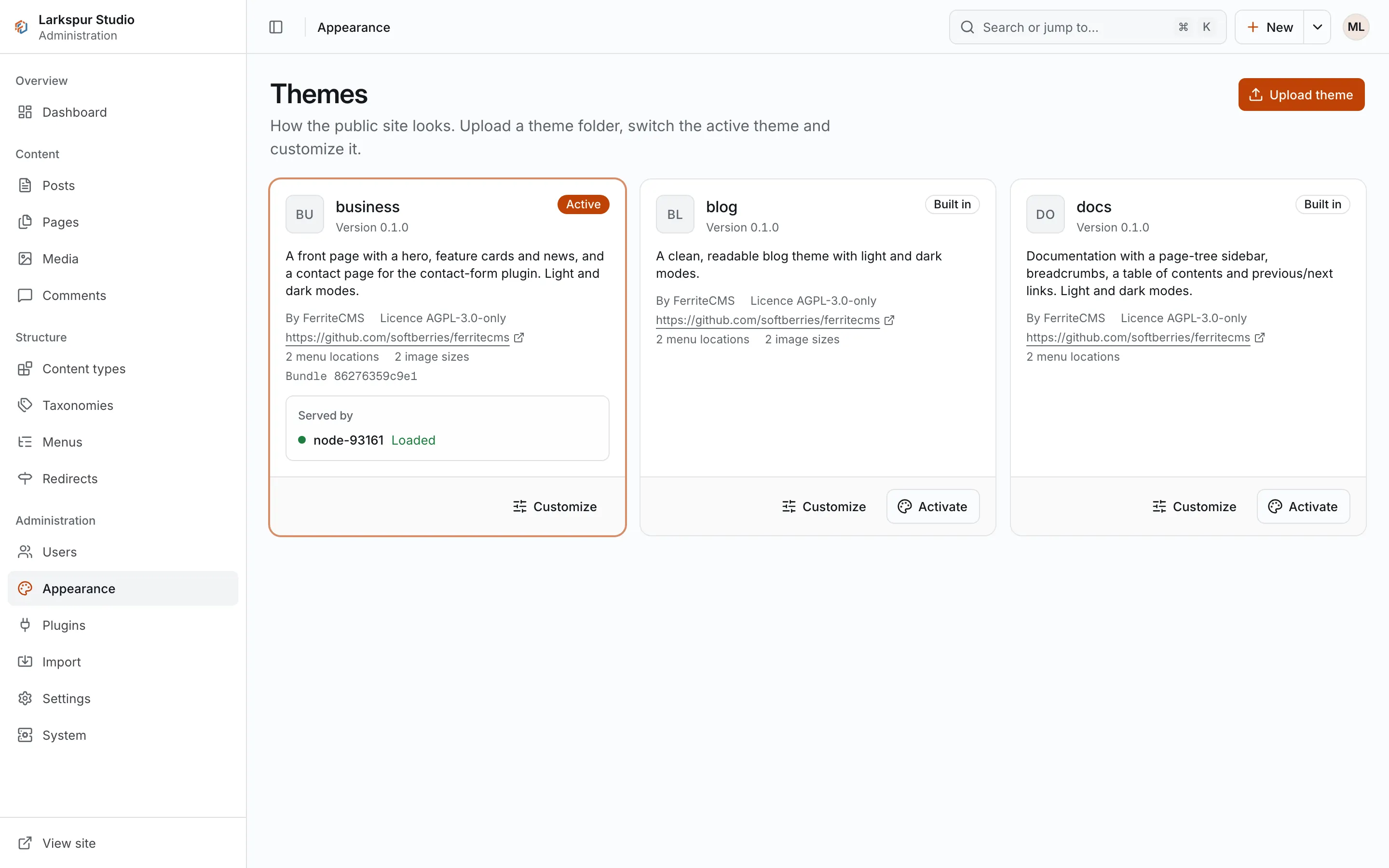
In the admin, open Appearance, find the theme's card and choose Activate. Each running node loads the new theme and flushes its page cache; the admin waits until every node reports it.
Or from the command line (with SQLite, stop serve first):
ferrite theme list --data ./mysite
ferrite theme activate --data ./mysite docs
A theme that does not load is refused, and the active theme stays as it was.
Customise a theme
A theme with settings has Customize on its card. The form shows the theme's settings (colours, switches, text); saving refreshes every page of the site. Menus are set under Structure → Menus, per location.
On a site with more than one language the built-in themes show a language switcher and translate their own interface text; templates get site.locales, translations(post), locale_links(post) and t("text") with [strings.<tag>] tables in theme.toml (see Multilingual sites).
To change a theme's templates or CSS, copy its folder (the built-in ones are in the repository under themes/), give it a new name in theme.toml, edit it, and install it as below.
Install a theme
From a folder, with the command line (with SQLite, stop serve first):
ferrite theme install --data ./mysite --dir ./my-theme --activate
Or in the admin: Appearance → Upload theme, then choose or drop the folder. The admin packs it in the browser and uploads it. You can also upload a bundle made with:
ferrite theme pack --dir ./my-theme --out my-theme.tar
Every template is compiled before anything is stored; a theme with an error is refused with the file and line of each problem. Uploading a theme with the name of an installed one replaces it, and if it is active, the new files go live at once. A theme may hold at most 2000 files and 20 MiB.
Updated